

LobeHub Integration with Exascale Cloud
LobeHub is an AI-powered chatbot platform that allows users to create and deploy conversational agents with ease. By integrating LobeHub with Exascale Cloud, you can leverage the power of multiple AI models to enhance your chatbot's capabilities, providing more accurate and engaging responses to your users.
Why Use LobeHub with Exascale Cloud?
LobeHub is an extensible, open-source frontend for building conversational AI applications. It supports OpenAI-compatible APIs, multi-provider backends, branching conversations, file uploads, knowledge base integration, agent-style workflows, and an advanced plugin system. This makes it ideal for building internal tools, customer-facing chatbots, or complex AI assistants.
LobeHub is optimized for self-hosting. It supports Docker-based deployment and is fully configurable through environment variables or its web-based admin UI. Teams can deploy LobeHub behind access codes, configure multiple model providers, and extend its behavior with agents and plugins.
Getting Started with LobeHub and Exascale Cloud
To integrate LobeHub with Exascale Cloud, follow these steps:
- Set Up Exascale Cloud: Sign up for an account and create an API token. Choose the models you want to use and configure any necessary settings.
- Create a Postgres Database Instance: LobeHub requires a Postgres database to store conversation history, user data, and configuration settings. You can set up a Postgres instance using services like AWS RDS, Google Cloud SQL, or Azure Database for PostgreSQL. Make sure to note the connection details (host, port, username, password) for later use.
- Deploy LobeHub: Follow the LobeHub documentation to deploy it on your preferred platform (e.g., Docker, Kubernetes).
- Configure LobeHub: In the LobeHub admin UI, add Exascale Cloud as a model provider. Use the API token and endpoint provided by Exascale Cloud.
- Test Your Chatbot: Start a conversation in LobeHub and observe how it interacts with the models hosted on Exascale Cloud. You can fine-tune the models or adjust LobeHub's settings to optimize performance.
1. Set Up Exascale Cloud
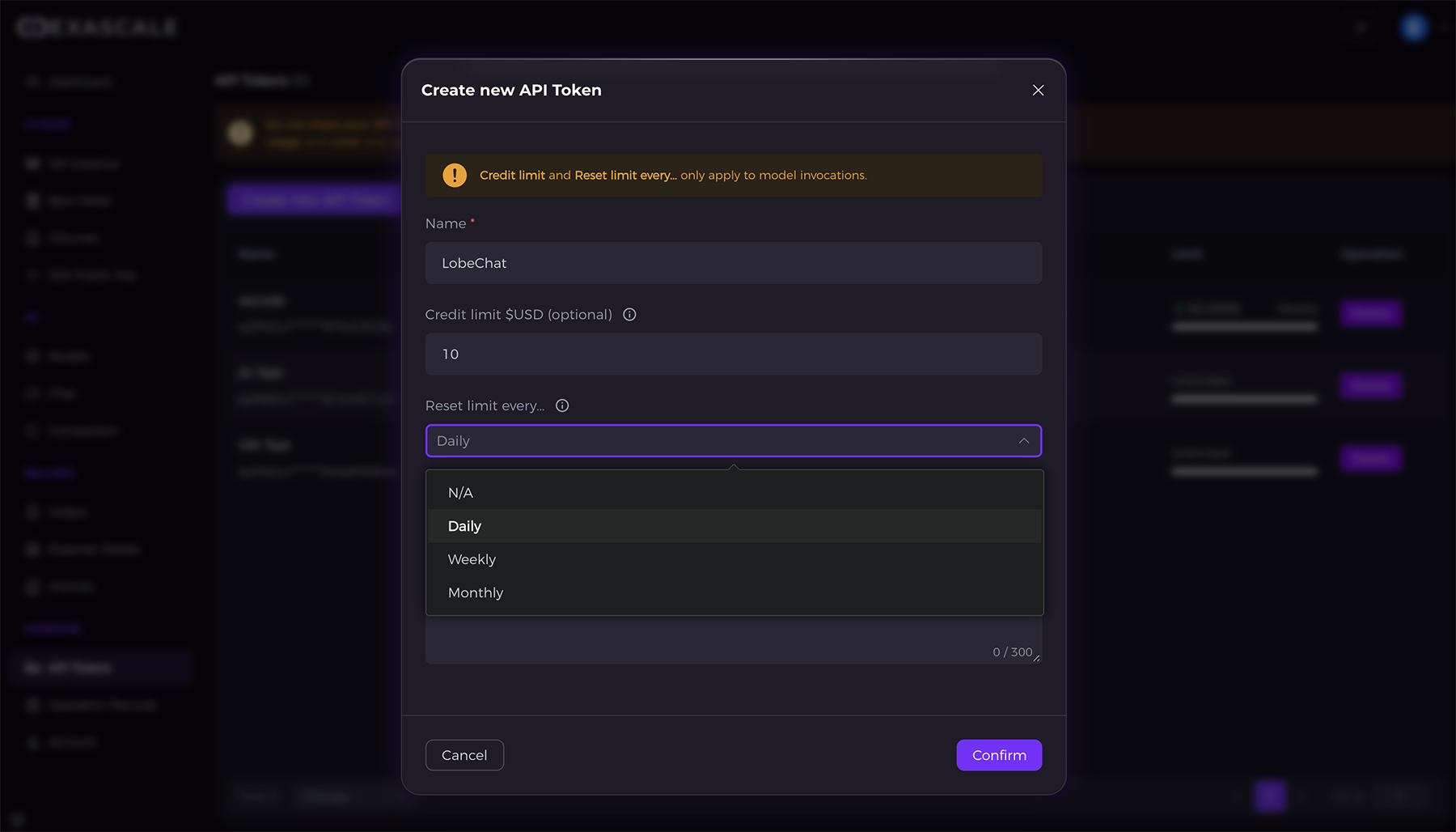
Go to the Exascale Cloud, navigate to the API Tokens section, and click "Create new API Token". Fill in the required information and save the token securely.
2. Create a Postgres Database Instance
LobeHub requires a Postgres database to store conversation history, user data, and configuration settings. You can set up a Postgres instance using services like AWS RDS, Google Cloud SQL, or Azure Database for PostgreSQL. Make sure to note the connection details (host, port, username, password) for later use.
Please create a Postgres database instance according to your needs, for example:
docker network create lobe-pg

docker run --name lobe-postgres --network lobe-pg -e POSTGRES_PASSWORD=mysecretpassword -p 5432:5432 -d paradedb/paradedb:latest-pg17
The above command will create a PG instance named lobe-postgres on the network lobe-pg, where paradedb/paradedb:latest-pg17 is a Postgres 17 image with pgvector and pg_search plugins installed by default.
3. Deploy LobeHub
Deploy LobeHub using Docker.
Create a file named lobehub.env to store environment variables:
# Website domain
APP_URL=https://your-prod-domain.com

# DB required environment variables
KEY_VAULTS_SECRET=ICnV2dNH+nxJZH0xz/VJpN/VMc1Kkr0KaFCKkrHqpYM=
# Postgres database connection string
# Format: postgres://username:password@host:port/dbname; if your pg instance is a Docker container, use the container name
DATABASE_URL=postgres://postgres:mysecretpassword@my-postgres:5432/postgres

# Authentication (Better Auth)
# Session encryption key (generate with: openssl rand -base64 32)
KEY_VAULTS_SECRET=ICnV2dNH+nxJZH0xz/VJpN/VMc1Kkr0KaFCKkrHqpYM=
# JWKS key for signing and verifying JWTs
JWKS_KEY={"keys":[{"d":"BnrM7L3AHwPdJt0DU_LIW0PpTJKGLW_OSM_-yG16KgqOBpCBk1AqB34vl-dUsSWGCPX3fh_vDiS4hzARcwX2iW7H6GXQYJ1cLu0nb5zJvrofZ-I71e_7mrVM2v9L6GLIkZlqWkrTTlbJ4hxsRIpMwRKBKY_kVbKN51gWWH6QvT6Cqq9MXgKZgNmE4lqP7aNxyBLYr8FO-taHMJGrj-fYuTVJFWwGEaGpezr3dGRna0TDdgaErsErT27cSFjML_MUPhtpxFEKdqvwefuGcQPUiSnC35ArpldPhxueHIrkHbvbOQkMkNxp9jN7eQxpPnccCpZf20sh1Aed6ckyEE_8XQ","dp":"H2SpwDiWQwh7Fk5RYeZ5VQgWOTJVQencRkhc5flP8ufu1jisLepozGiQsJ0n_gGaJwN-KvDI1llUMDPr1fTO9_UEqanr4dUVKMvuIUo4MwUkgBP2z2BWcC5btjK0FLBTKnwSKdfvK4ZT7qoUeaSJBzIBu-0EYN7r_ZIaKPZFZxE","dq":"V_qtBOdpqJJxvg-Eke35iUD9a2GJsjUy3kv6AhsH_JLblmszUo44OtsHBzGWBONi4ajZYAIZioMoQsY8n8WkLMVdLep10mgyXxAQo9QghUNCdm-x-Woung_iBmfWAm-Id3579urngd3POPEiZDcm5zeO3cvA2XLuSYUeQc_WWmU","e":"AQAB","kty":"RSA","n":"mSeTkM7kcRltrrigLxjXT64QzVG1oHxuY1LZbFjH76HVIARx0pjhD9S04IhUblnODLH0ymuftb-STpRKPUwPXOMn-JaQk-JAhFX9cH-JaD-Ih4C_UUzjpm8TTP3kCq5yqNGT_xfaQN5YHfE3anuDwxaGwfAoCDT1fQh9EIqaxNMHaVkXIzjrz9zz4-OB8h4u26tWNvOPq9oN8D4pPp_IW7mBmCuKSOhZYoQ36BF-mAUHxl0TI5ZXp9Yc-5UaeEb04NLN9zVoVNz8cdyEP5SnFk98vLPCXQpenTVwTekmOxiEtUB3DMdwsmDHdufuV_WVjl3KklBFKo2q33-4q6NLGQ","p":"xtKbe3TUcydv47u2YcPqHlDUMbCZShixuqW7SH2fheKN25JqcSvOS3A-XySHpf07r5bWsksaM7VzH8SHOIUef1tAyKX87R-KyIMwhM7bBWB4dcT-mSnN8OEfe1v8ntW993iLehCmVQpggcgRgicOC43T0HhWoiwOjwss5ywxaY0","q":"xTLeeMazXRRyWa8j76rJmIPzQV4fHVRrpv_sgtmpKQJSVGjD5E-y5D9e62dizyXz6L5DuNTONpZj2KhPIbO0aMNwMcw31QvIaf8-kvmwvZIU-bBPyghsSg7MJOTn1CGcei58kSe1p9gnojcH4gjwuZoEeiTHSLq7xdvWj1g_Vr0","qi":"pdfRGBxvZpbHzUmjzJzRcZfOcmtyZ4VuzWgP_3mvOYR9osljTQruZv0xrgwXZweSV0GidXitO1hb_MGhVQ91dSgUF-rstd3Zi81iTokZE-Ddw_i6po-DR9zkUr4Q6Q5cOThWK07OtqEOQYAqpNA3GhIMmwN5xUeB-O5VON9iCr0","use":"sig","kid":"e5d7d1f1d421b8c4","alg":"RS256"}]}

OPENAI_API_KEY=eyJhbGciOiJIUzI1NiIsInR5cCI6IkpXVCJ9.eyJlbWFpbCI6ImdwdWN1c3RvbWVyQGV4YWJpdHMuYWkiLCJ1c2VybmFtZSI6ImdwdWN1c3RvbWVyIiwidWlkIjoiNjZlYWRkZWRlYmFkOTgwMDEyZjdmZDVmIiwiYWNjZXNzIjoiZ1B1ZXhhQklUU0AyMDI1IiwidHlwZSI6ImFwaV9hY2Nlc3NfdG9rZW4iLCJ0b2tlbl9pZCI6IjZhMmE3MDAxZjI0NWIzMDAxMmI0YmUxYiIsImV4cGlyZXNfYXQiOjAsImlhdCI6MTc4MTE2NjA4MX0.l9cPQggHdB8ehezHX5fFZcvDBRUSHCA-xfGPNUkXBWU
OPENAI_PROXY_URL=https://gpu-api.exascalelabs.ai/api/v1
OPENAI_MODEL_LIST=-gpt-oss-120b,-Qwen/Qwen3-14B-AWQ,-deepseek-ai/DeepSeek-V3-0324
Start the lobehub Docker image
docker run -it -d -p 3210:3210 --network lobe-pg --env-file lobehub.env --name lobehub lobehub/lobehubYou can use the following command to check the logs:
docker logs -f lobehubIf you see the following logs in the container, it means it has started successfully:
[Database] Start to migration...
✅ database migration pass.
-------------------------------------
  ▲ Next.js 14.x.x
  - Local:        http://localhost:3210
  - Network:      http://0.0.0.0:3210

 ✓ Starting...
 ✓ Ready in 95ms
3. Configure LobeHub
Open LobeHub UI and Navigate to Settings > Model Providers > Add Provider
Open http://localhost:3210 in your browser. Enter your access code (e.g., exascale) if prompted.
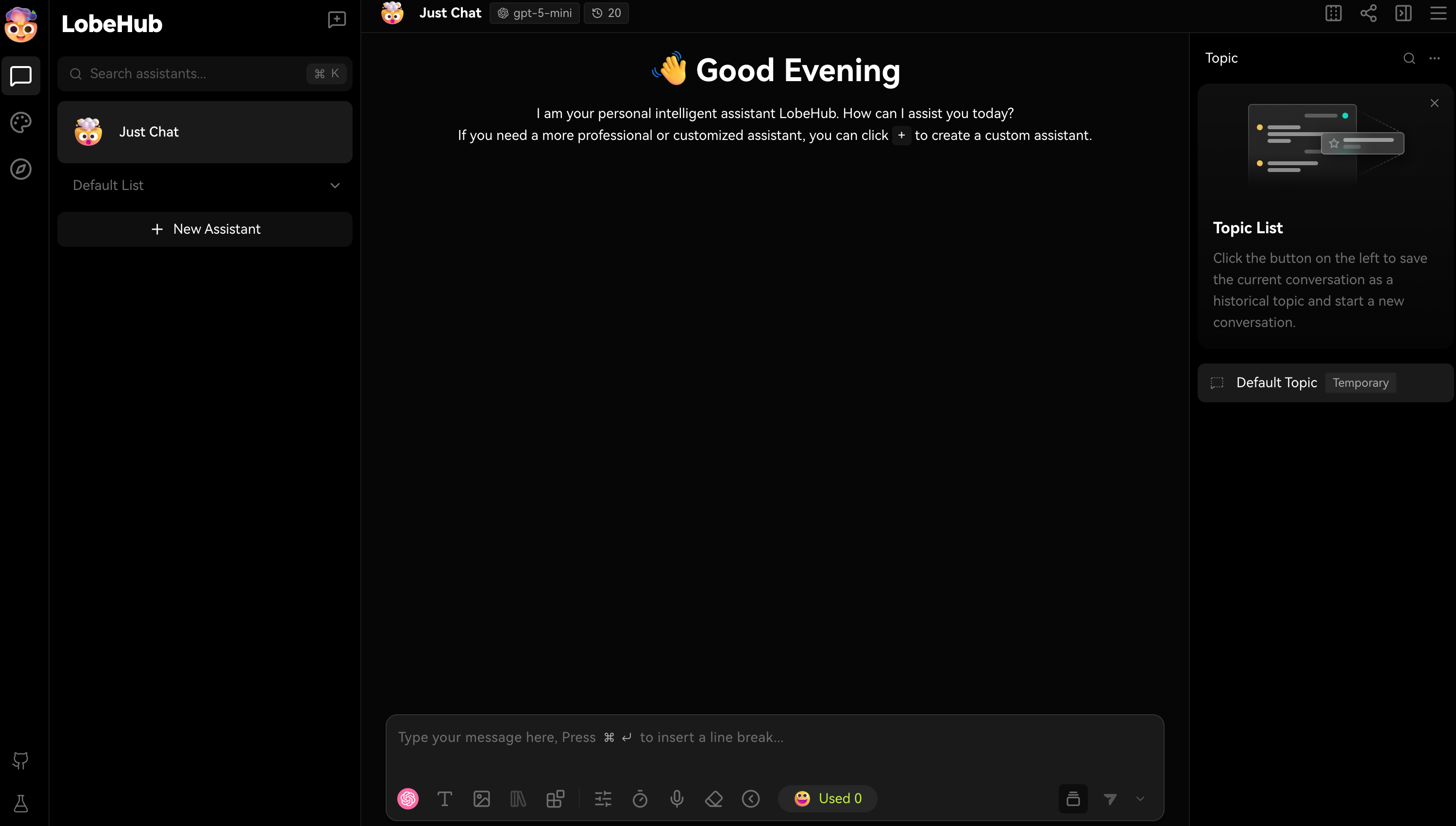
Click the profile icon (top-right), then select Settings. Scroll to the Language Model section.
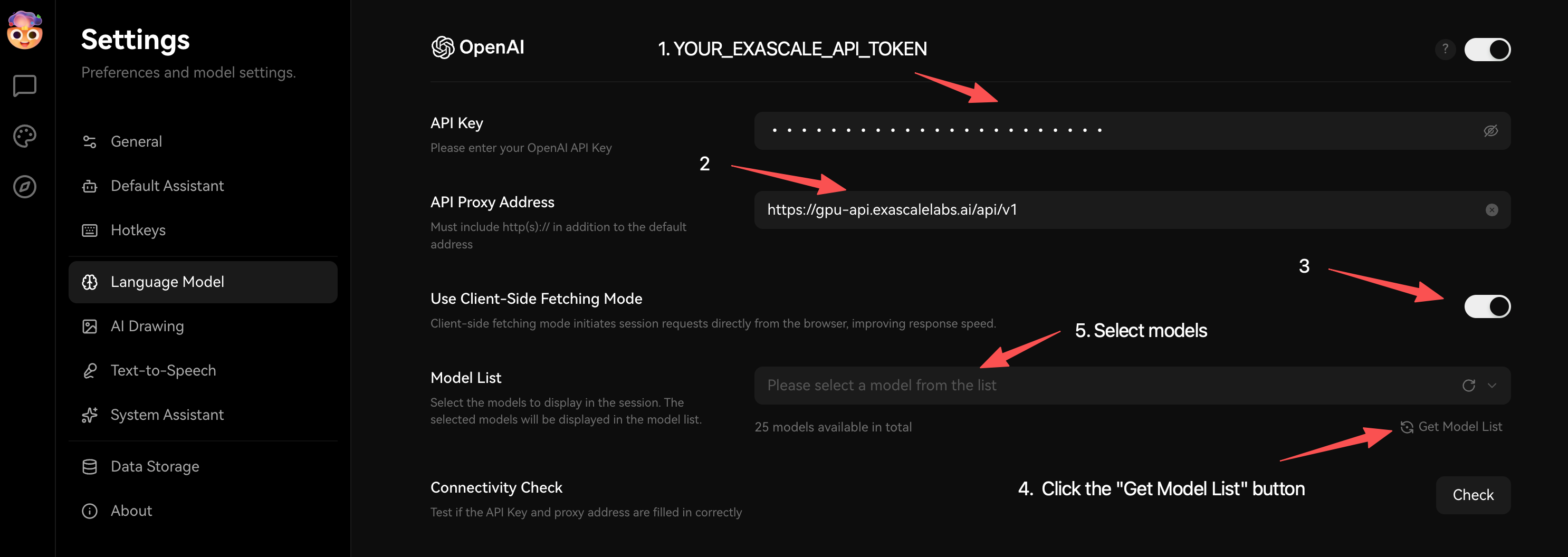
Setting up the integration involves the following steps:
- Enter API Key: Paste the API token you generated from Exascale Cloud.
- Set API Proxy Address: Use
https://gpu-api.exascalelabs.ai/api/v1as the base URL for API requests. - Enable Use Client-Side Fetching Model: This allows LobeHub to directly communicate with Exascale Cloud without routing through a backend server, reducing latency and improving performance.
- Get Model List: Click the "Get Model List" button to fetch the available models from Exascale Cloud. This will populate the dropdown with the models you can use.
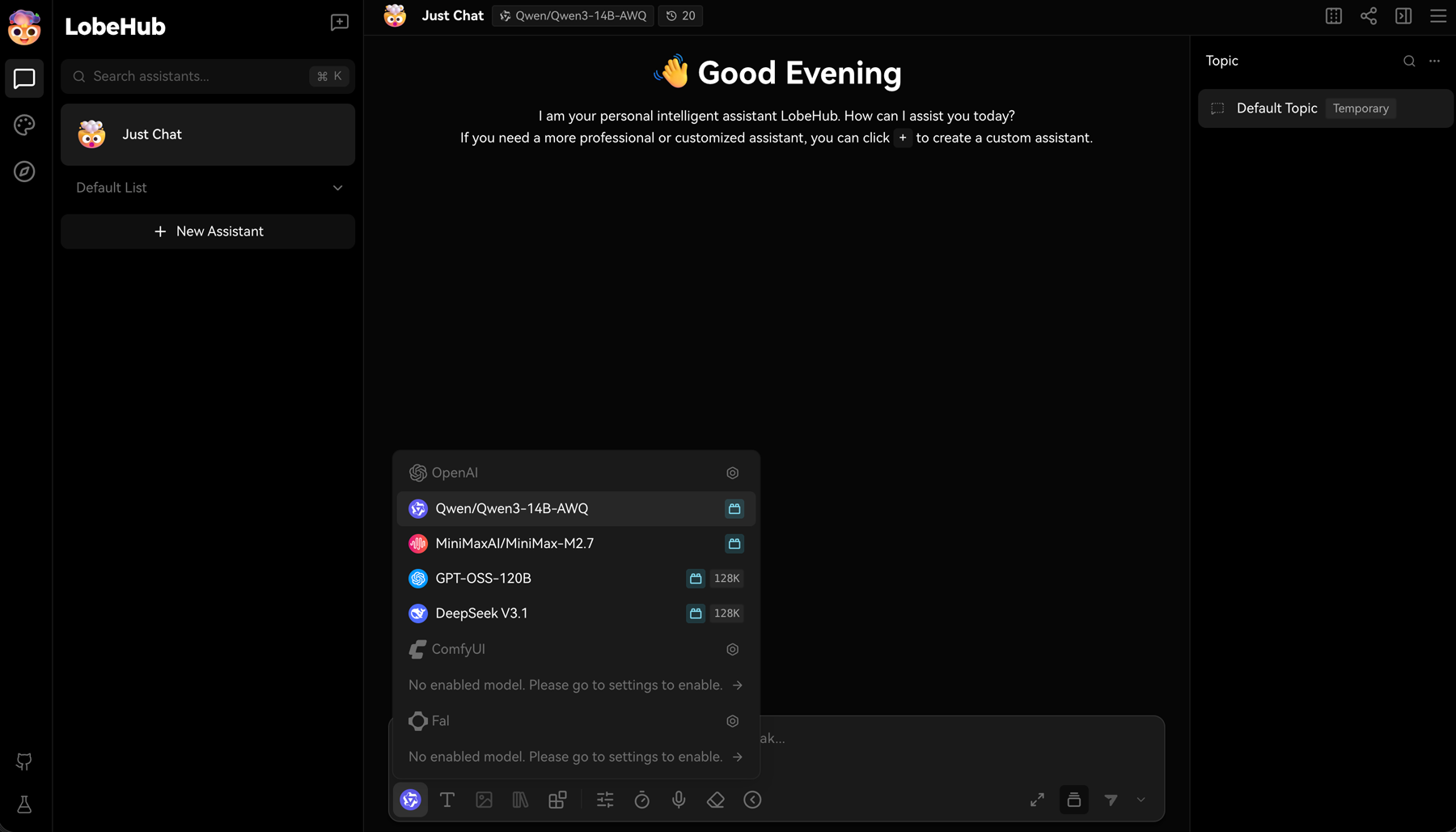
- Model List: Select the models you want to use in LobeHub from the dropdown. You can choose multiple models to enable multi-model conversations. e.g.,
Qwen/Qwen3-14B-AWQ,MiniMaxAI/MiniMax-M2.7,GPT-OOS-120Betc.
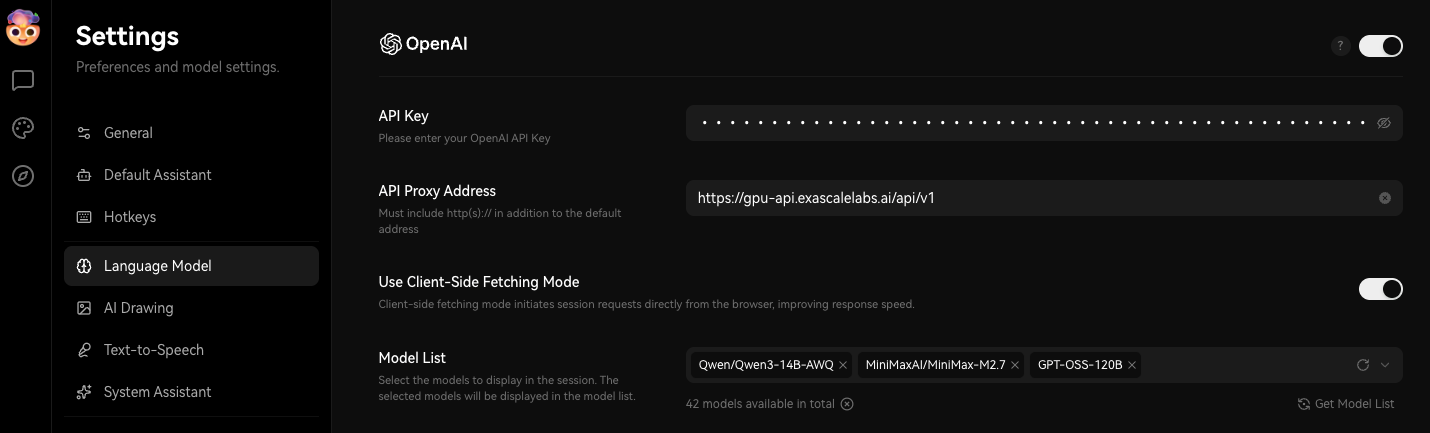
The above configuration allows LobeHub to directly call Exascale Cloud's API for model inference, enabling you to leverage the power of Exascale Cloud's models within your LobeHub conversations. You can now start chatting and see how the selected models respond to user inputs in real-time.
4. Test Your Chatbot
Return to the main chat interface. The model should be listed at the top or in the model selector dropdown.
Send a prompt like:
Help me write a JWT login program in Python.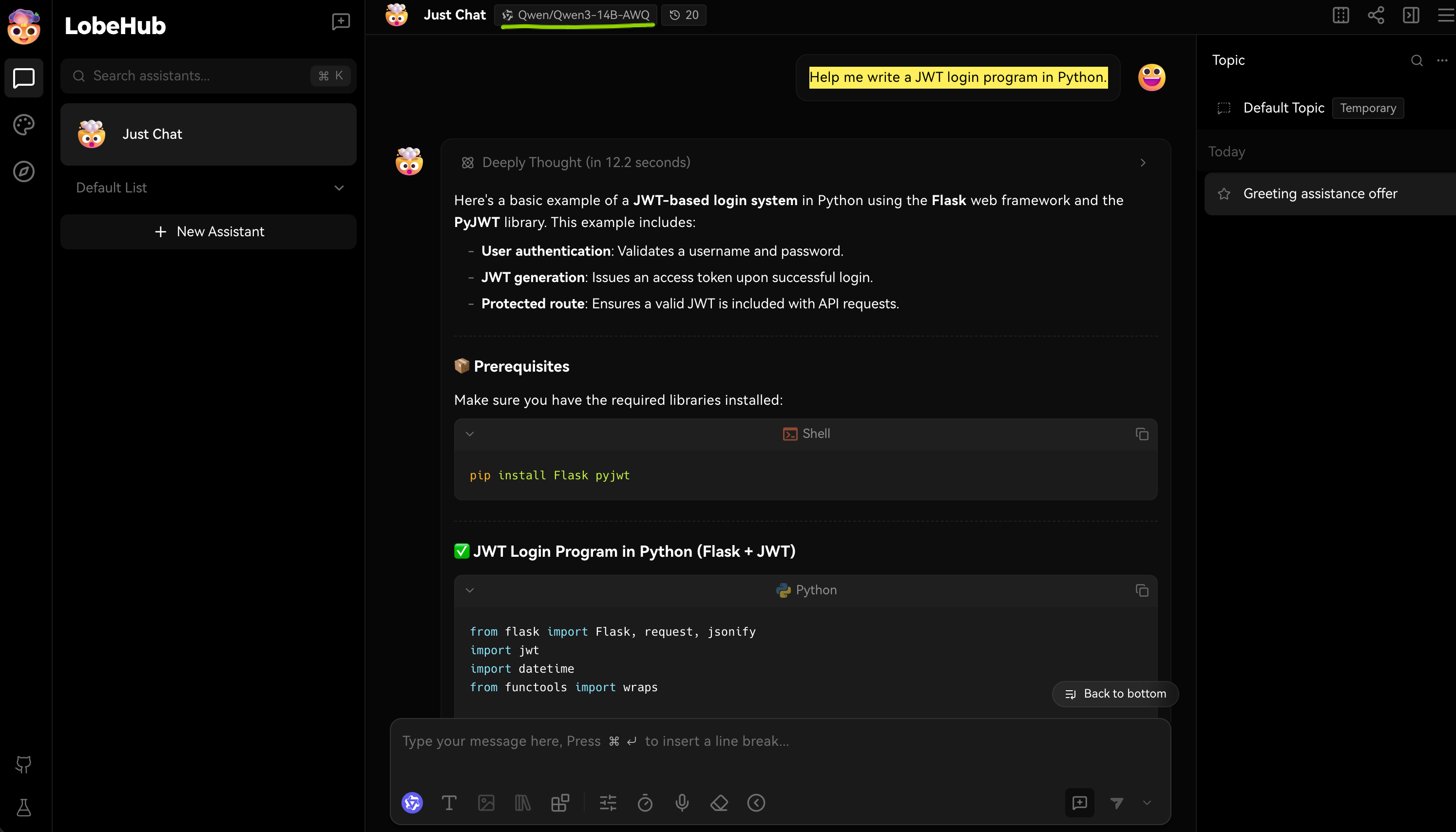
Conclusion
Integrating LobeChat with Exascale Cloud AI allows you to build powerful conversational agents that can leverage the strengths of multiple AI models. Whether you're creating a customer support chatbot, an internal knowledge assistant, or a complex AI agent, this integration provides the tools and flexibility you need to succeed.