

Comparison
Evaluate and test multiple AI models side by side in a single workspace, with a visual interface for model parameters.
| Where | Exascale Cloud console, Comparison section |
|---|---|
| Access | Sign in at gpu.exascalelabs.ai/login |
| Models per workspace | Multiple, shown in parallel panels |
| Configurable parameters | Temperature, top-p, max tokens, stop sequences, system prompts |
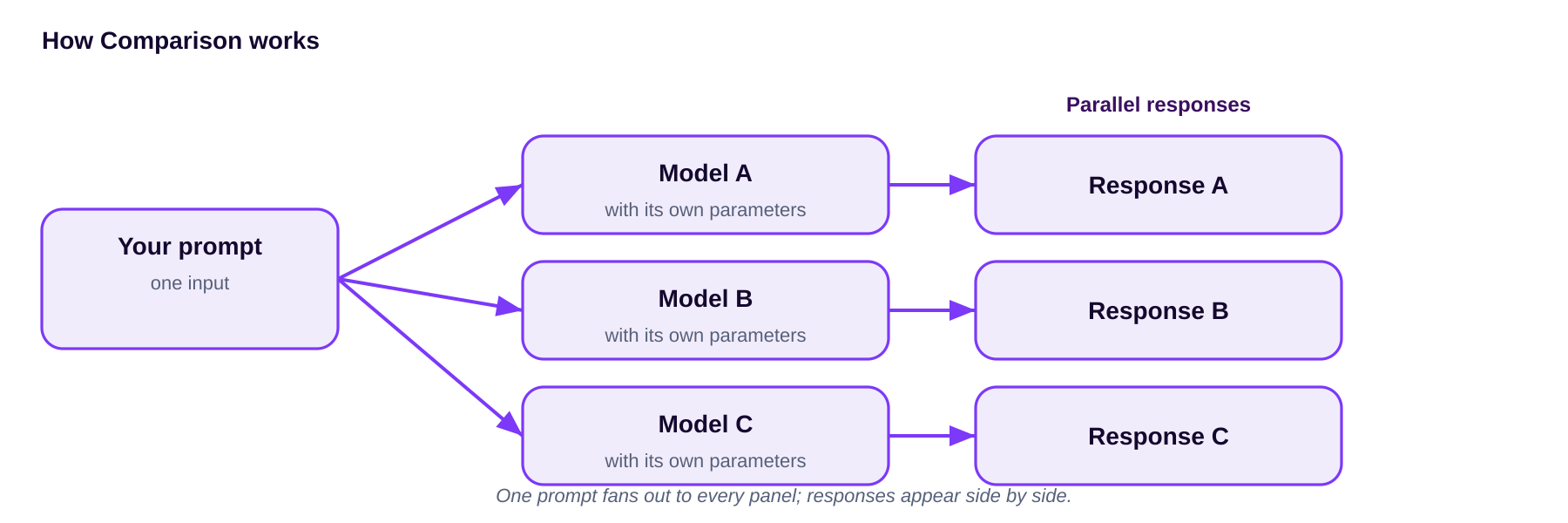
Comparison is a powerful tool designed to streamline the evaluation and testing of multiple AI models side by side. It allows you to easily compare the performance of different models on the same input data, making it easier to identify the best model for your specific use case. With Comparison, you can quickly assess the strengths and weaknesses of each model, helping you make informed decisions about which one to use in your applications.
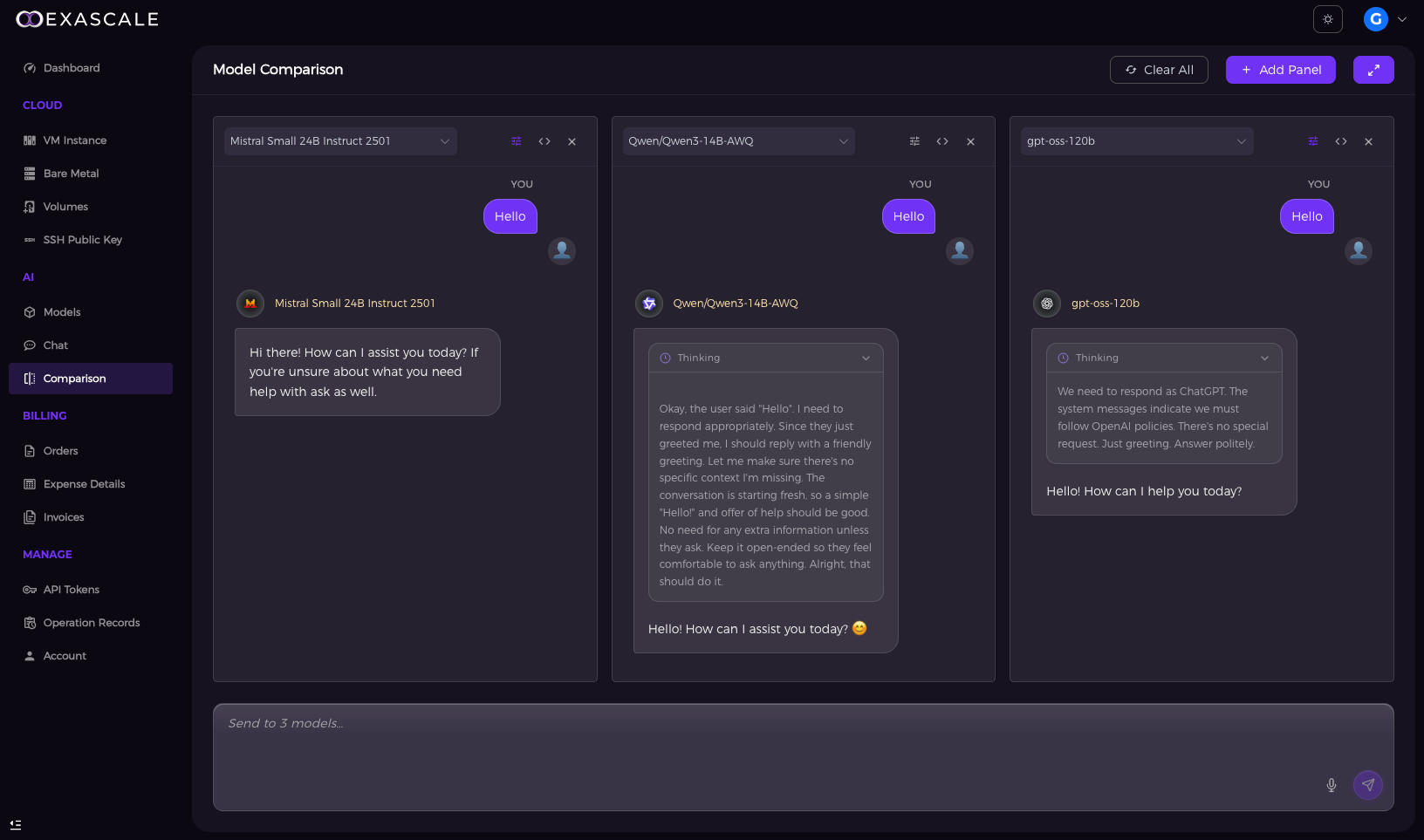
It enables users to visually configure model parameters, such as temperature, top-p, max tokens, stop sequences, and system prompts, through an intuitive graphical interface, eliminating the need for manual coding. Once parameters are set, users can engage in simultaneous conversations with several models (for example, GPT OSS, DeepSeek, Qwen, and MiniMaxAI) within a single workspace. Responses are displayed in parallel, making it easy to compare output quality, style, and factual accuracy.
What you can do
- Configure model parameters through a graphical interface, including
temperature,top-p,max tokens,stop sequences, andsystem prompts. - Run simultaneous conversations with several models in one workspace.
- View responses in parallel to compare output quality, style, and factual accuracy.
How to use Comparison
Follow these steps in the Exascale Cloud console:
- Sign in at gpu.exascalelabs.ai/login.
- Navigate to the Comparison section.
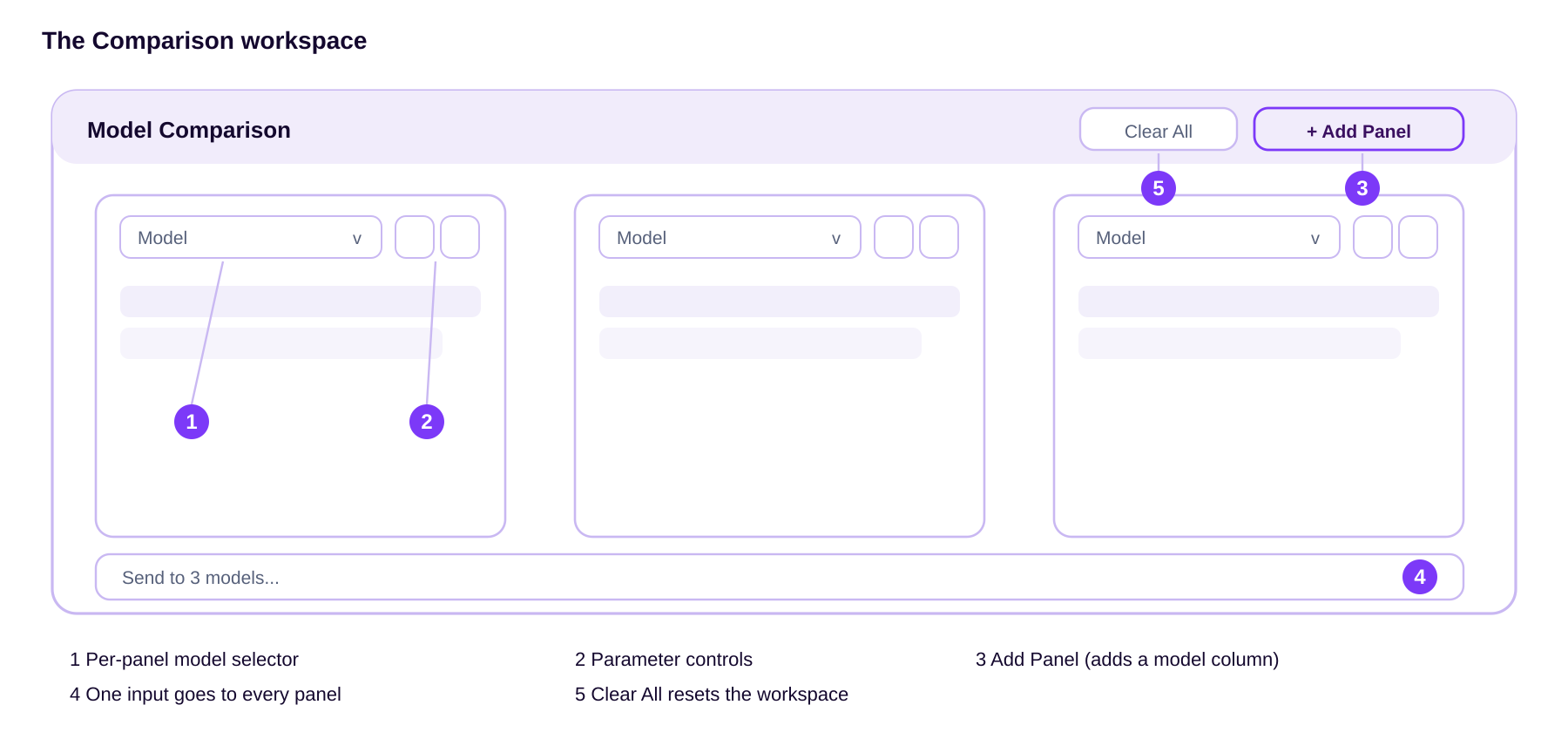
- Click Add Panel and select the models you want to compare.
- Configure the parameters for each model.
- 5.Enter a prompt and start the conversation. Each model responds in real time, so you can evaluate them side by side.
Notes
- Comparison lets you configure temperature, top-p, max tokens, stop sequences, and system prompts. Temperature, top_p, and max_tokens map to the same parameters on the
chat/completionsendpoint. - Use Add Panel to add models and Clear All to reset the workspace.
- The model selector in each panel lists the models available to your account, the same set returned by the
modelsendpoint.
Sources
This guide is taken from the official Exascale Cloud API documentation.
- Comparison: gpu-api.exascalelabs.ai/api-reference/token-factory/comparison
- Chat (chat/completions): gpu-api.exascalelabs.ai/api-reference/token-factory/chat
- Models (model list): gpu-api.exascalelabs.ai/api-reference/token-factory/models