

Continue Extension in VS Code with Exascale Cloud
Add Exascale Cloud’s models to the Continue extension for Visual Studio Code and get chat, inline edits, and Tab autocomplete from GPU-hosted models, without leaving your editor.
| apiBase (base URL) | https://gpu-api.exascalelabs.ai/api/v1 |
|---|---|
| Provider value | openai (OpenAI-compatible style) |
| Configuration file | config.yaml (in the user’s .continue folder) |
| Authentication | Bearer API token, set as apiKey per model |
| Console (create API tokens) | https://gpu.exascalelabs.ai/login |
| Capabilities | Chat · Edit · Autocomplete · Agent |
The Continue extension in Visual Studio Code allows you to seamlessly integrate Exascale Cloud's AI capabilities into your coding workflow. With this extension, you can generate code snippets, get suggestions, and even have entire functions or classes written for you based on your comments or existing code. The Continue extension leverages the power of Exascale Cloud's models to provide intelligent code completions and assist you in writing high-quality code faster.
Why Use Continue with Exascale Cloud?
Continue is an open-source AI code assistant for VS Code that keeps you in flow while you code: ask questions about your codebase with Chat, make targeted edits without switching context with Edit, get inline suggestions as you type with Autocomplete, and hand off complex development tasks to Agent, all without leaving your IDE.
By integrating Exascale Cloud with Continue, you can take advantage of Exascale Cloud’s powerful AI models directly within your coding environment. You can access a wide range of models for different programming languages and tasks, all through the familiar interface of VS Code. Whether you are looking for help with debugging, code generation, or simply want to explore new coding possibilities, the Continue extension with Exascale Cloud has you covered.
This guide walks you through connecting Exascale Cloud to Continue in VS Code, from obtaining your API token to configuring chat models, setting up Tab autocomplete, and verifying everything works end to end.
Step 1: Get your Exascale Cloud API token
Before you begin, ensure you have a valid Exascale Cloud account:
- Register an Exascale Cloud account at https://gpu.exascalelabs.ai/login. You can sign up with Google or GitHub.
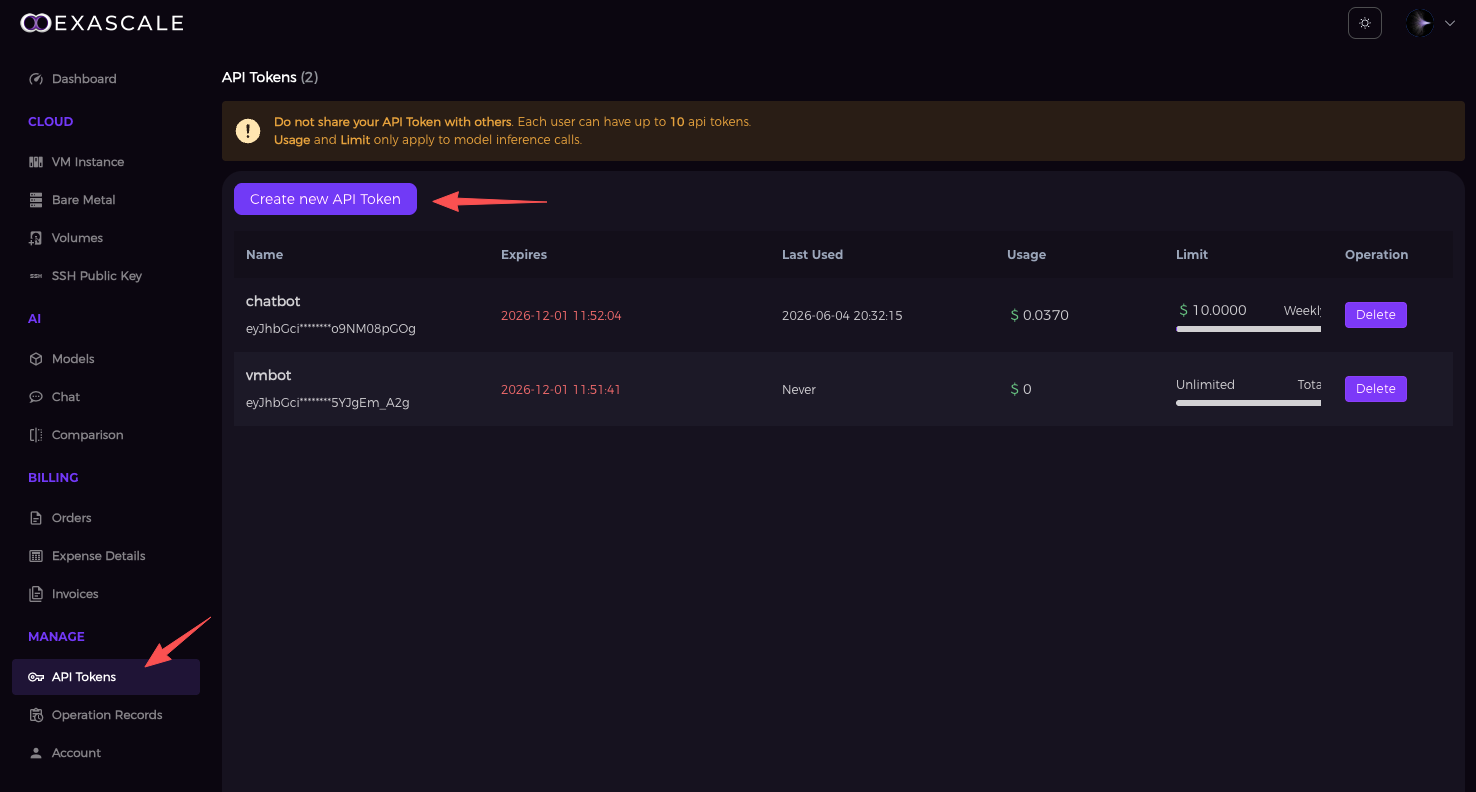
- Log in and navigate to API Tokens.
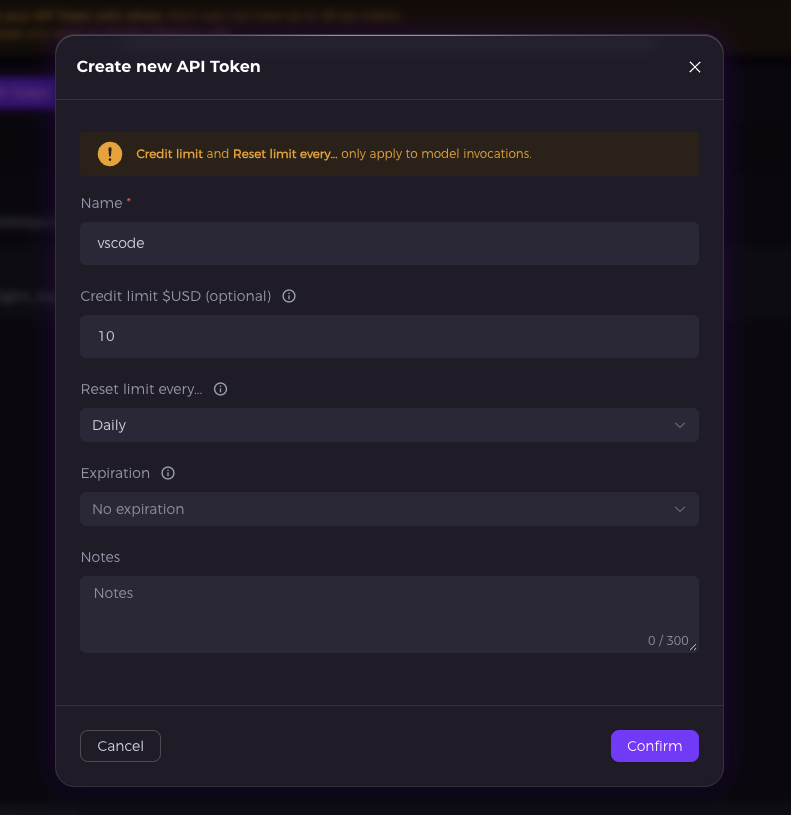
- Click Create new API Token and add a name to help you identify it later, then confirm to create it.
- Click the API token to copy it automatically.
KEEP YOUR API TOKEN SECURE
You will need it for the configuration in Step 3. When creating the token you can set a daily spending limit (for example, $10) to avoid excessive token consumption. The credit limit and reset interval apply only to model invocations.
Step 2: Install the Continue extension
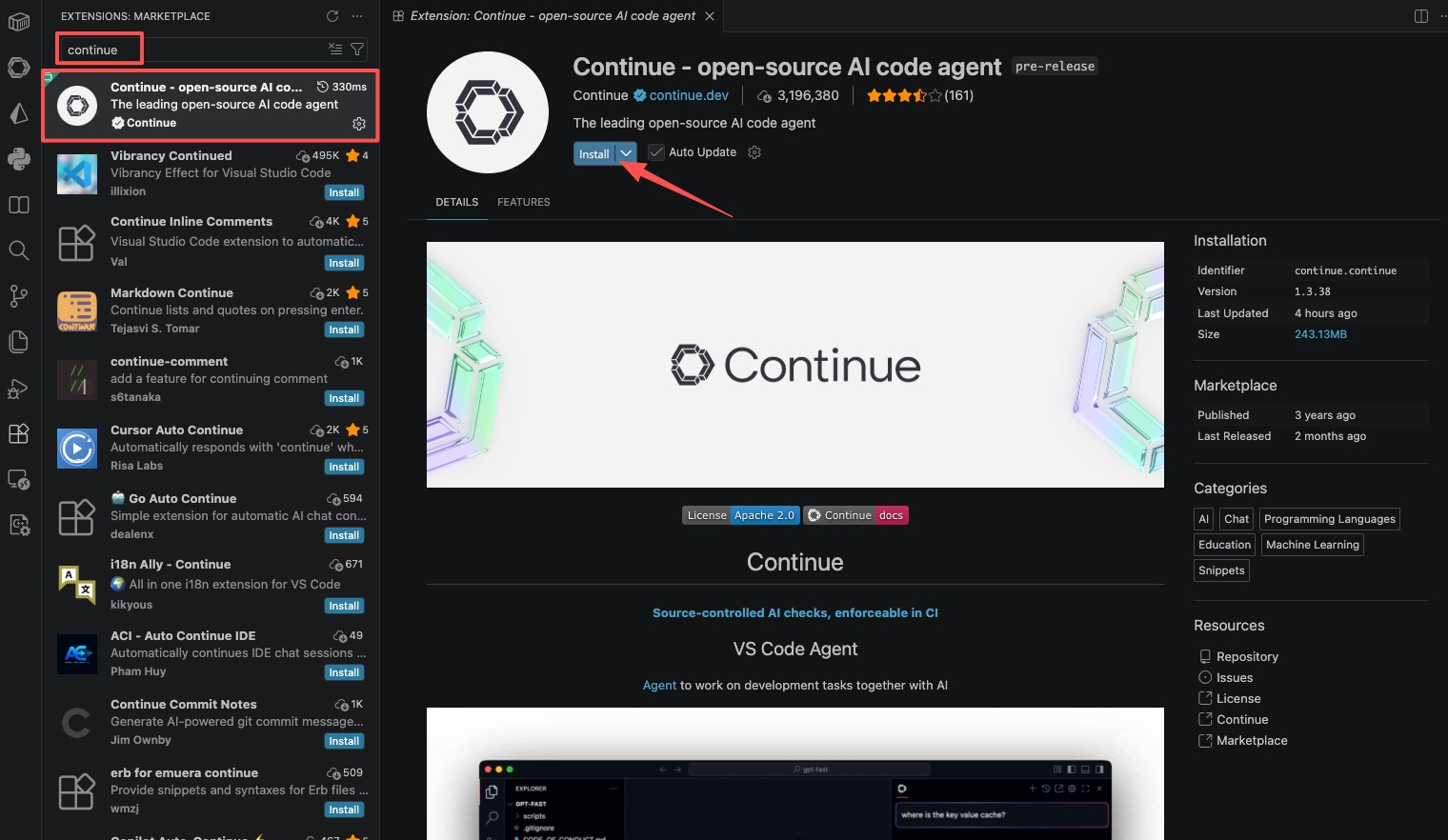
Open VS Code, click the Extensions icon in the left Activity Bar (Ctrl+Shift+X / Cmd+Shift+X), search for "Continue", and click Install. The extension is published by continue.dev with the identifier continue.continue.
INSTALL FROM THE MARKETPLACE SITE
You can also open the extension page directly from the Visual Studio Marketplace. Clicking Install there redirects you to VS Code, where you complete the installation the same way.
Step 3: Configure your models in config.yaml
Once Continue is installed, open the configuration file to set up your Exascale Cloud models:
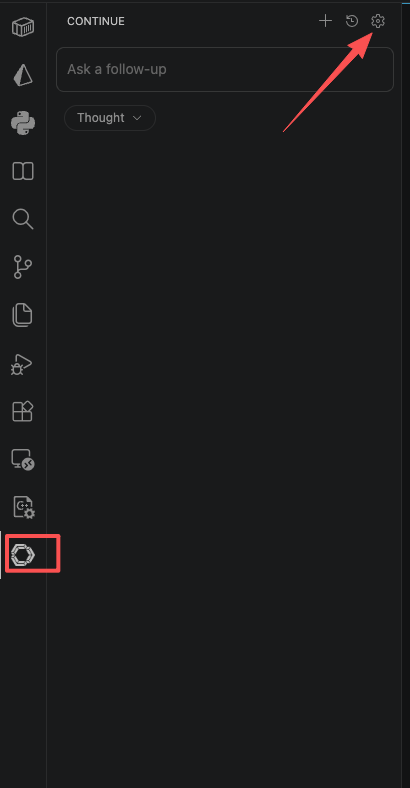
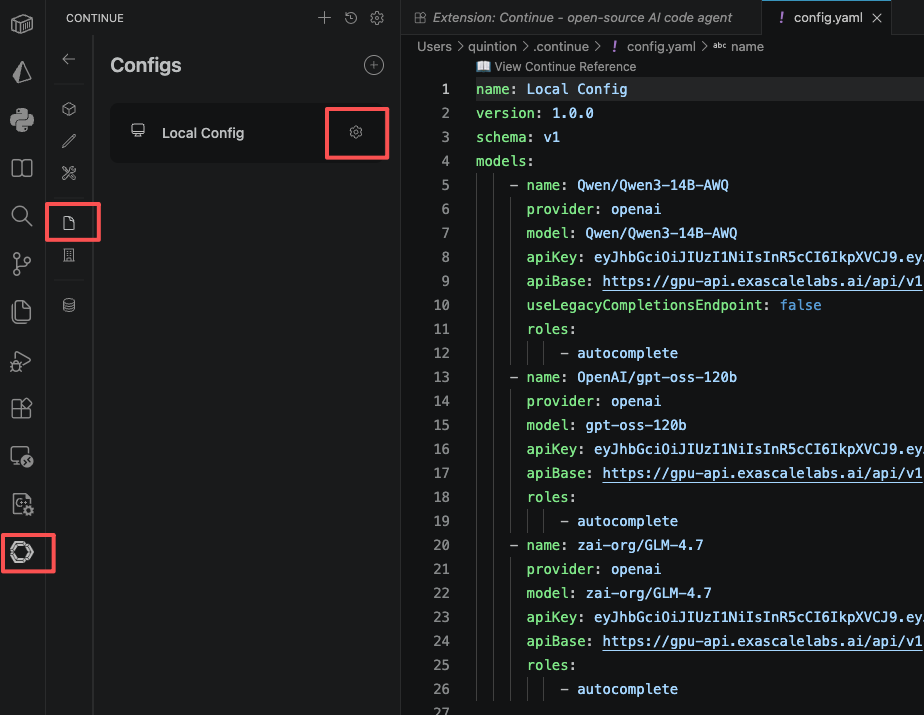
- Click the Continue icon in the Activity Bar on the left.
- Click the settings icon in the top-right corner of the Continue panel.
- In the left sidebar of settings, select Config.
- Click the settings icon next to Local Config and your
config.yamlopens automatically.
Configure your chat models
Add your Exascale Cloud models to the models list in config.yaml. You can configure multiple models and API tokens in a single file. The example below sets up three models, Qwen/Qwen3-14B-AWQ, OpenAI/gpt-oss-120b, and zai-org/GLM-4.7:
name: Local Config
version: 1.0.0
schema: v1
models:
    - name: Qwen/Qwen3-14B-AWQ
      provider: openai
      model: Qwen/Qwen3-14B-AWQ
      apiKey: "YOUR_EXASCALE_API_TOKEN"
      apiBase: https://gpu-api.exascalelabs.ai/api/v1
      defaultCompletionOptions:
          temperature: 0.9
          maxTokens: 4096
      roles:
          - autocomplete
          - chat
    - name: OpenAI/gpt-oss-120b
      provider: openai
      model: gpt-oss-120b
      apiKey: "YOUR_EXASCALE_API_TOKEN"
      apiBase: https://gpu-api.exascalelabs.ai/api/v1
      defaultCompletionOptions:
          temperature: 0.9
          maxTokens: 2048
      roles:
          - autocomplete
    - name: zai-org/GLM-4.7
      provider: openai
      model: zai-org/GLM-4.7
      apiKey: "YOUR_EXASCALE_API_TOKEN"
      apiBase: https://gpu-api.exascalelabs.ai/api/v1
      defaultCompletionOptions:
          temperature: 0.9
          maxTokens: 2048
      roles:
          - autocomplete
Replace "YOUR_EXASCALE_API_TOKEN" with the token from Step 1, and set each model’s roles to control where it is used: chat for the chat panel, autocomplete for inline Tab suggestions.
WHY PROVIDER: OPENAI?
In this context the openai provider value denotes the OpenAI API style or protocol: an interface compatible with OpenAI’s request/response format, authentication mechanisms, and endpoint conventions. The underlying service is provided by Exascale Cloud.
USE REAL MODEL NAMES
The identifiers above are the examples shown in Exascale’s documentation. The authoritative list for your account comes from the GET /api/v1/models endpoint. Set each model value to a model_name returned there.
Step 4: Verify your setup
Save and reload
Save config.yaml. Continue reloads configuration automatically in most cases. If changes don’t take effect, restart your IDE.
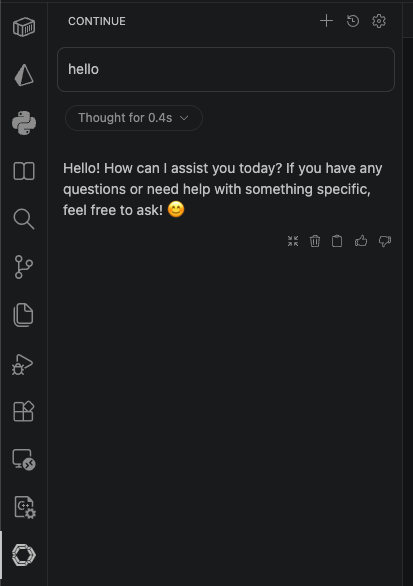
Test chat
Open the Continue chat panel. All models defined in your config appear in the model selector. Pick any one, send a test message such as Hello, and confirm you receive a response.
Test autocomplete
Open any code file (for example, a JavaScript file), type a code snippet like const express, and pause for a moment. If a gray inline suggestion appears after the cursor, the Tab autocompletion feature is working properly. A typical completion looks like this:
const express = require("express");
const cookieParser = require("cookie-parser");
const bodyParser = require("body-parser");
const createError = require("http-errors");

const passport = require("passport");

const app = express();

app.use(cookieParser());
app.use(bodyParser.json());
app.use(bodyParser.urlencoded({ extended: false }));

app.use(passport.initialize());

app.get("/test", (req, res) => {
    res.json({ message: "Test route is working!" });
});

app.use((req, res, next) => {
    next(createError(404));
});

module.exports = app;
Check and review the usage
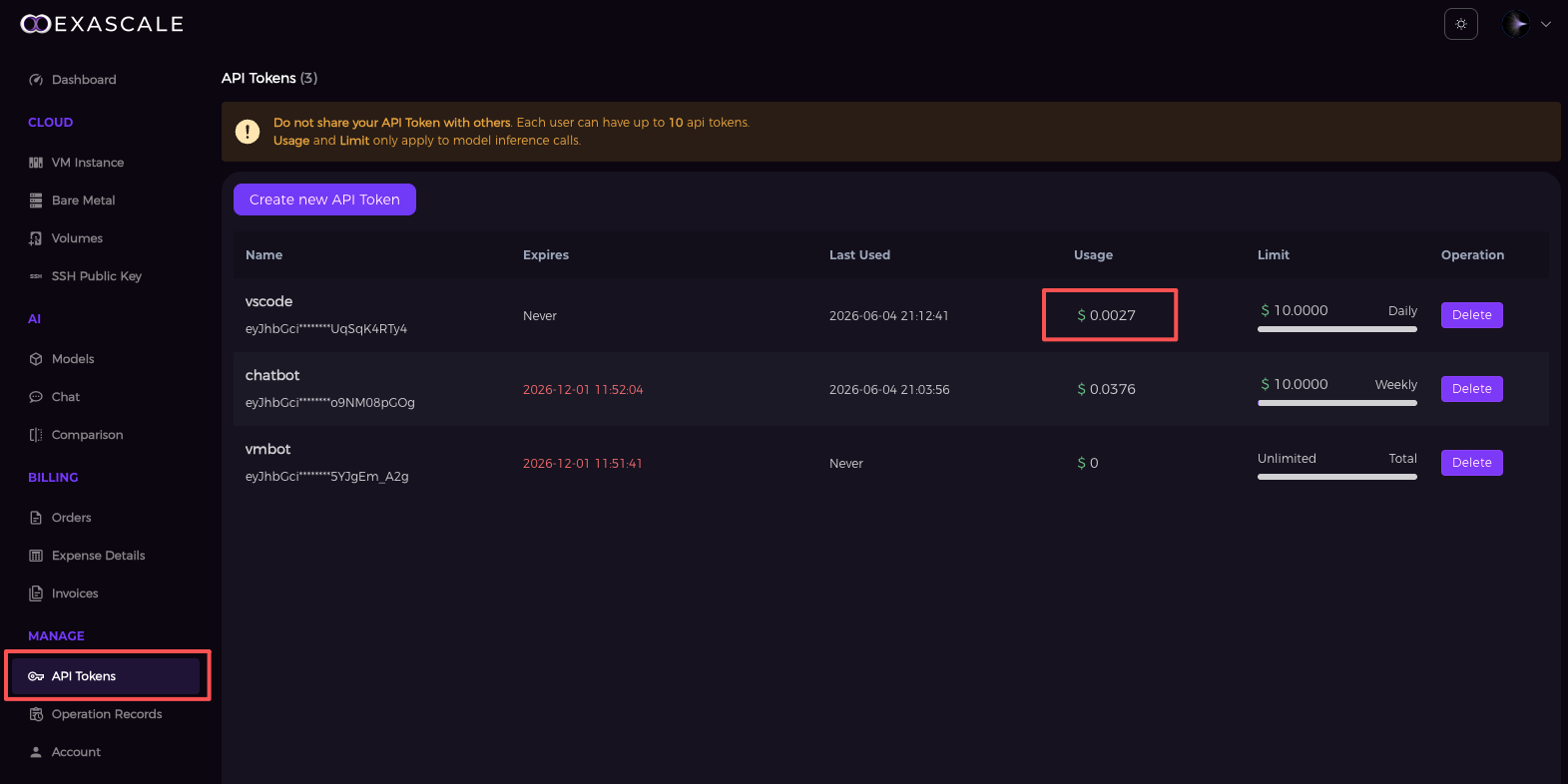
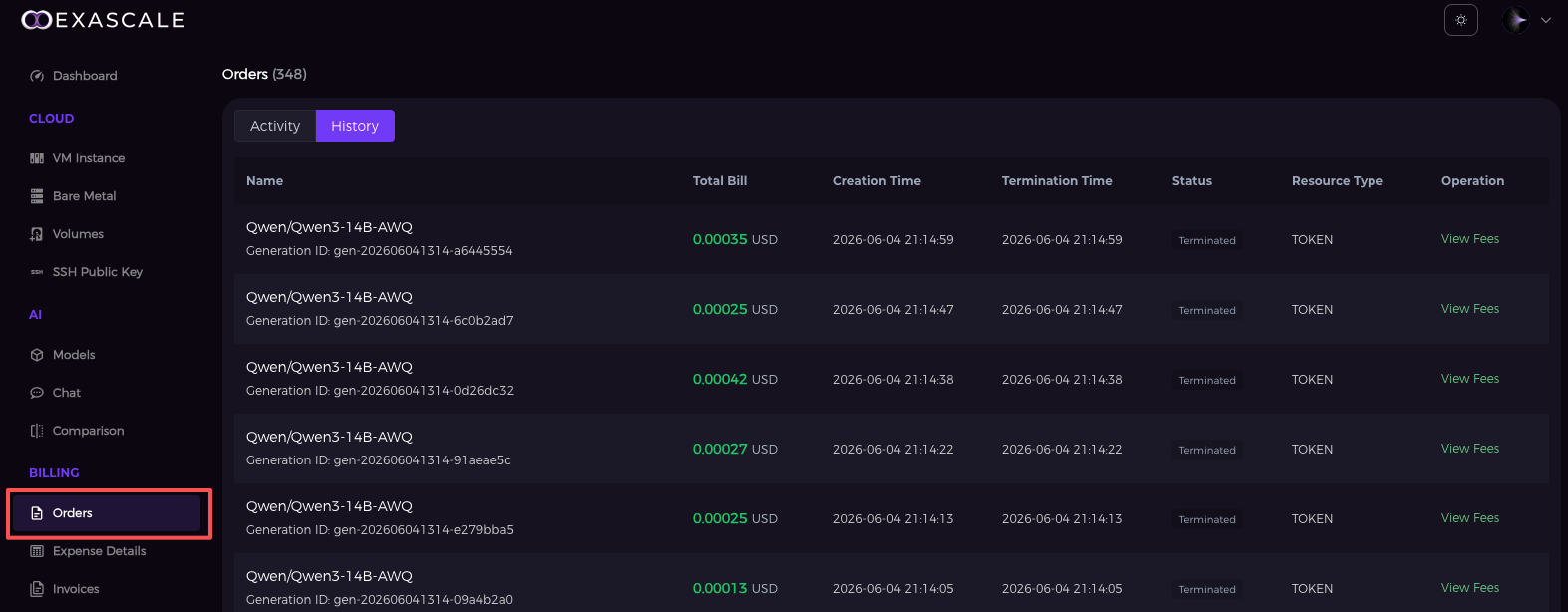
Open the API token and orders features in the Exascale Cloud console to see how VS Code is consuming your account. The API Tokens page shows per-token usage against its limit, and the Orders / History view itemizes each generation as a TOKEN order with its own bill and generation ID.
Understanding the API behind the integration
Continue talks to Exascale Cloud through the same OpenAI-compatible endpoints used by any OpenAI-style provider, under the base URL https://gpu-api.exascalelabs.ai/api/v1. The autocomplete and chat roles both resolve to chat-completions requests; understanding the endpoints helps when tuning models or debugging.
Models endpoint
Listing models is GET {base}/models. Use a returned model_name as the model value in your config. Each record also reports pricing, context length, max completion tokens, provider details, and knowledge cutoff.
Chat Completions endpoint
Each request is POST {base}/chat/completions, authenticated with Authorization: Bearer <token>. Required parameters are model and stream; optional parameters include messages, temperature, top_p, top_k, presence_penalty, repetition_penalty, and max_tokens. Your defaultCompletionOptions (temperature, maxTokens) map onto these parameters. Responses carry the generated choices and a usage object with prompt, completion, and total token counts.
| config.yaml key | Sent to the API as |
|---|---|
| model | model (the model_name to invoke) |
| apiBase | the base URL requests are sent to |
| apiKey | the Bearer token in the Authorization header |
| defaultCompletionOptions.temperature | temperature |
| defaultCompletionOptions.maxTokens | max_tokens |
| roles | whether the model is used for chat, autocomplete, etc. (client-side) |
Tips and troubleshooting
- Changes not applied: save
config.yaml; if Continue doesn’t reload automatically, restart the IDE. - No models in the selector: confirm each entry has
provider: openai, the correctapiBase, and a validapiKey. - Autocomplete silent: ensure at least one model lists autocomplete under roles, then pause after typing to let the suggestion appear.
- Cost control: set a credit limit and reset interval on the token (Step 1); track spend on the API Tokens and Orders pages.
- Token hygiene: each user can hold up to 10 API tokens. Use a dedicated token per tool (e.g., “vscode”) so usage is easy to attribute.
Conclusion
With the Continue extension integrated with Exascale Cloud, you can leverage powerful AI models directly within your VS Code environment. This setup enhances your coding experience with intelligent code suggestions, chat-based assistance, and more, all while keeping your workflow intact. Explore the capabilities of different models, optimize your coding process, and enjoy a more efficient development experience with Continue and Exascale Cloud.
Sources
Every instruction, command, configuration value, and model identifier in this guide is drawn from the official Exascale Cloud API documentation. The embedded screenshots are the figures published on those pages.
- Continue Extension in VS Code with Exascale Cloud: gpu-api.exascalelabs.ai/api-reference/token-factory/integrations/continue
- Chat (chat/completions): gpu-api.exascalelabs.ai/api-reference/token-factory/chat
- Models (model list): gpu-api.exascalelabs.ai/api-reference/token-factory/models