

LobeChat Integration with Exascale Cloud
Connect a self-hosted LobeChat deployment to Exascale Cloud’s OpenAI-compatible Token Factory API, and run multi-model conversational AI against GPU-hosted models you control end to end.
| apiBase (base URL) | https://gpu-api.exascalelabs.ai/api/v1 |
|---|---|
| Protocol | OpenAI-compatible (Chat Completions and Models endpoints) |
| Authentication | Bearer API token, set as apiKey per model |
| Console (create API tokens) | https://gpu.exascalelabs.ai/login |
| Deployment model | Self-hosted Docker container (also runs under Kubernetes) |
LobeChat is an AI-powered chatbot platform that allows users to create and deploy conversational agents with ease. By integrating LobeChat with Exascale Cloud, you can leverage the power of multiple AI models to enhance your chatbot’s capabilities, providing more accurate and engaging responses to your users. Because Exascale Cloud exposes an OpenAI-compatible interface, LobeChat connects to it the same way it connects to any OpenAI-style provider: you point it at a base URL, paste a bearer token, and let LobeChat enumerate the available models and route every message to them. No custom adapter or backend glue code is required.
Why use LobeChat with Exascale Cloud?
LobeChat is an extensible, open-source frontend for building conversational AI applications. It supports OpenAI-compatible APIs, multi-provider backends, branching conversations, file uploads, knowledge base integration, agent-style workflows, and an advanced plugin system. This makes it ideal for building internal tools, customer-facing chatbots, or complex AI assistants.
LobeChat is optimized for self-hosting. It supports Docker-based deployment and is fully configurable through environment variables or its web-based admin UI. Teams can deploy LobeChat behind access codes, configure multiple model providers, and extend its behavior with agents and plugins.
Pairing LobeChat with Exascale Cloud gives you a private, self-hosted chat experience backed by GPU inference. You keep ownership of the interface, the conversation data, and the access controls, while Exascale Cloud handles the model serving. Selecting several models lets you offer multi-model conversations, switching between models mid-thread to match each task.
How the integration works
There are three moving parts. LobeChat’s OpenAI provider is pointed at the Exascale base URL https://gpu-api.exascalelabs.ai/api/v1. Your Exascale API token authenticates every request as an HTTP Bearer credential. And two OpenAI-compatible endpoints do the work: the Models endpoint populates the model dropdown when you click “Get Model List,” and the Chat Completions endpoint serves each message you send.
HOW REQUESTS FLOW
With Use Client-Side Fetching enabled, your browser calls Exascale Cloud directly. That reduces latency and keeps your token in the browser session. Requests originate from the client in this mode; disable it if you prefer all traffic to pass through your LobeChat backend.
Before you begin
- An Exascale Cloud account. You can sign up with Google or GitHub at https://gpu.exascalelabs.ai/login.
- A machine or server with Docker installed and the ability to expose a local port.
- The API token you create in Step 1 (kept somewhere secure).
Step 1: Set up Exascale Cloud and create an API token
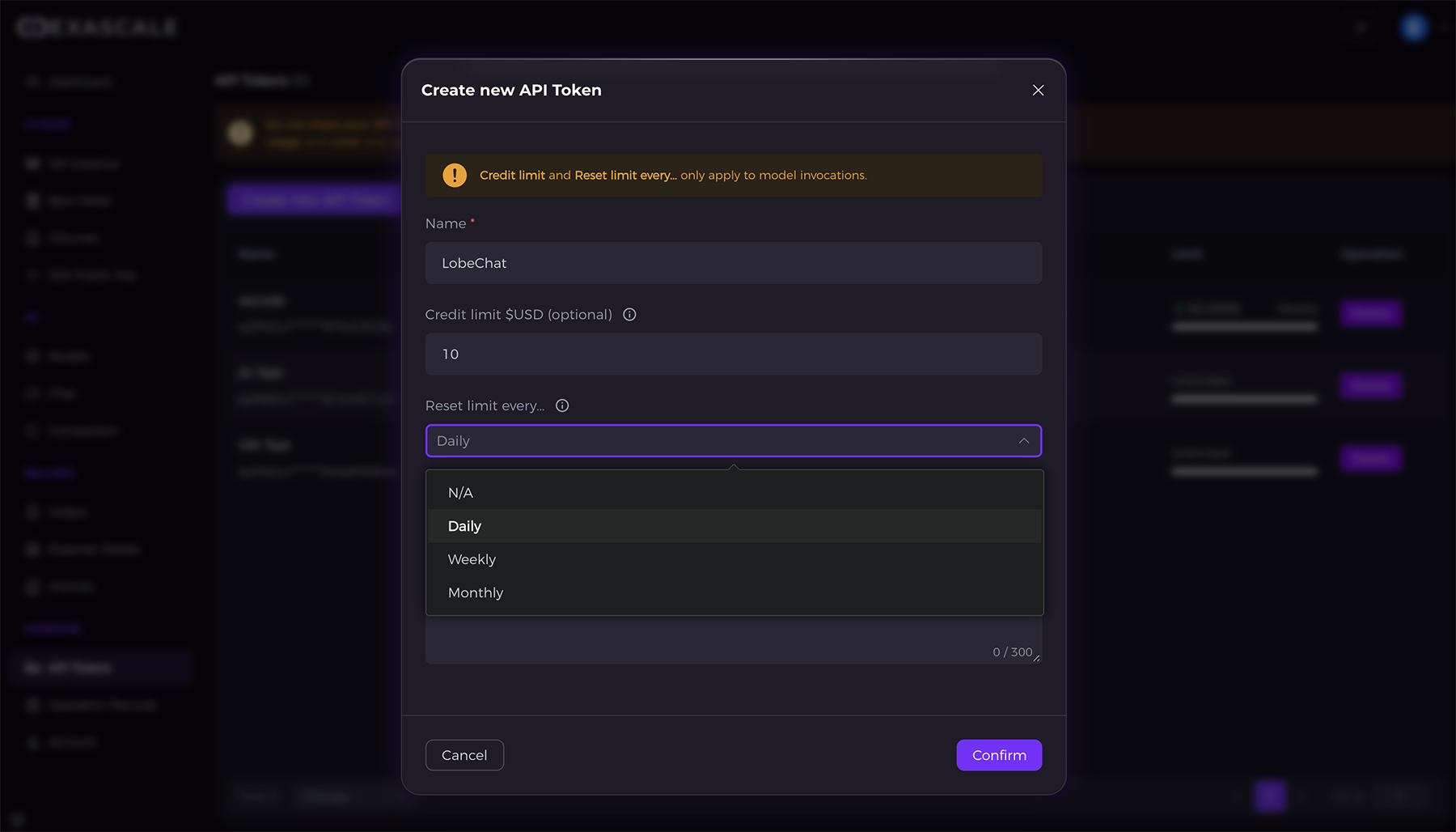
Go to the Exascale Cloud console at https://gpu.exascalelabs.ai/, navigate to the API Tokens section, and click Create new API Token. Fill in the required information and save the token securely.
In the create dialog you provide a Name (for example, LobeChat), an optional Credit limit ($USD) to cap spend, and a Reset limit every… interval (N/A, Daily, Weekly, or Monthly). As the dialog notes, the credit limit and reset interval apply only to model invocations. After confirming, click the token to copy it.
KEEP YOUR TOKEN SECURE
Treat the token like a password. You will paste it into LobeChat as the API key in Step 3, and anyone holding it can spend against your account up to the limits you set.
Step 2: Deploy LobeChat with Docker
Deploy LobeChat using Docker. The command below pulls the latest image and exposes LobeChat on port 3210.
docker run -d -p 3210:3210 --name lobechat lobehub/lobe-chat:latestYou can use the following command to check the logs:
docker logs -f lobechatIf you see the following logs in the container, it means it has started successfully:
🌐 DNS Server: [ '192.168.65.7' ]
-------------------------------------
   ▲ Next.js 15.3.8
   - Local:        http://localhost:3210
   - Network:      http://0.0.0.0:3210

 ✓ Starting...
 ✓ Ready in 159ms
Step 3: Configure LobeChat to use Exascale Cloud
Open http://localhost:3210 in your browser. Enter your access code (for example, exascale) if prompted.
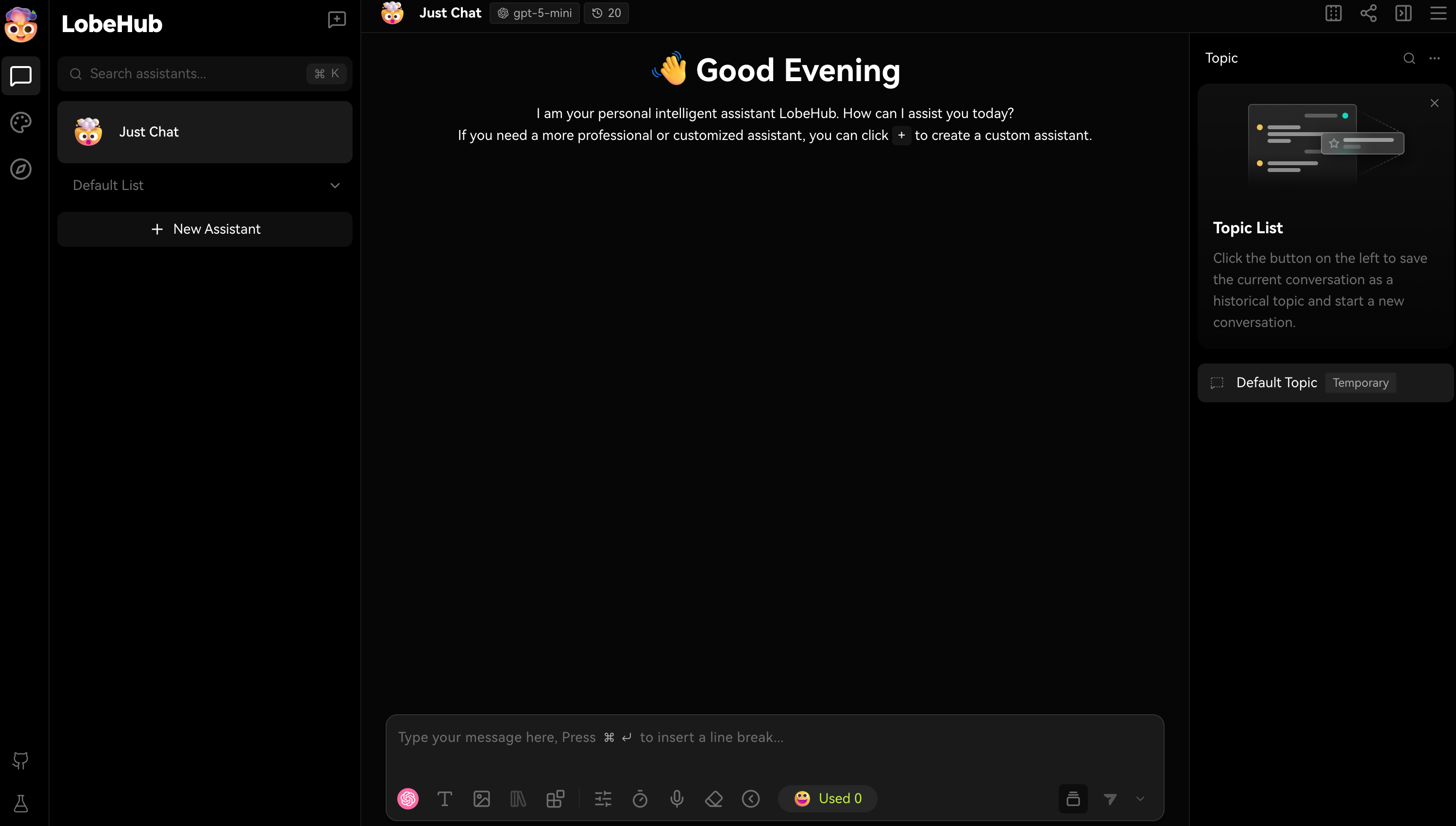
Click the profile icon (top-right), then select Settings. Scroll to the Language Model section and open the OpenAI provider. Setting up the integration involves five actions:
- Enter API Key: paste the API token you generated from Exascale Cloud.
- Set API Proxy Address: use
https://gpu-api.exascalelabs.ai/api/v1as the base URL for API requests. (The field requires the http(s)😕/ scheme in addition to the address.) - Enable Use Client-Side Fetching Mode: this allows LobeChat to communicate with Exascale Cloud directly from the browser, reducing latency and improving performance.
- Get Model List: click the “Get Model List” button to fetch the available models from Exascale Cloud. This populates the dropdown with the models you can use.
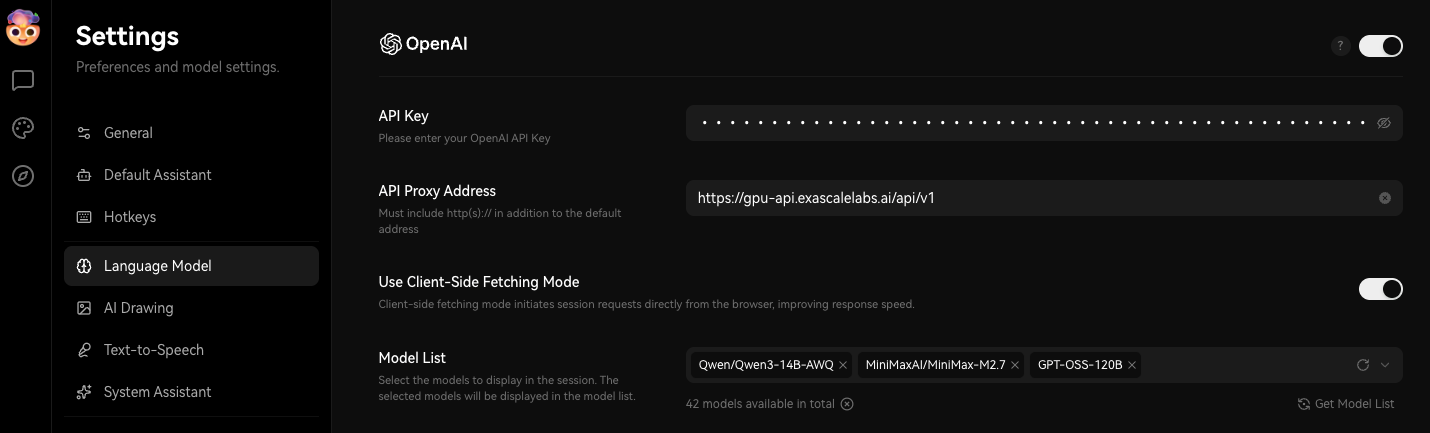
- Model List: select the models you want to use in LobeChat from the dropdown. You can choose multiple models to enable multi-model conversations, for example
Qwen/Qwen3-14B-AWQ,MiniMaxAI/MiniMax-M2.7, andGPT-OOS-120B.
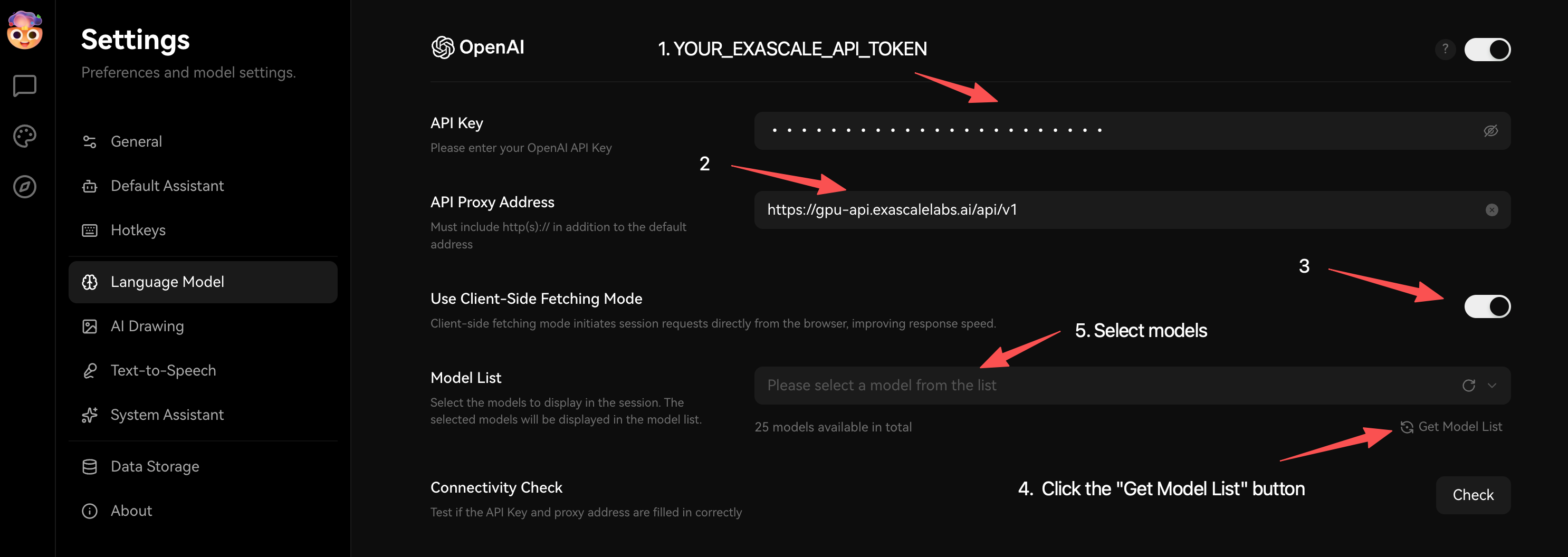
After clicking Get Model List, LobeChat queries Exascale and shows how many models are available, then lets you select which ones to surface in the chat. The available count reflects the live catalog at fetch time. The configured view below shows 42 models available with three selected.
THE MODEL LIST IS LIVE
The model names above are the examples shown in Exascale’s documentation. The authoritative list for your account is whatever Get Model List returns (equivalently, the GET /api/v1/models endpoint). The model count visible in the screenshots differs between captures (25 vs. 42), which is expected. Treat the live fetch as the source of truth for available models.
This configuration allows LobeChat to call Exascale Cloud’s API directly for model inference. You can now start chatting and see how the selected models respond to user inputs in real time.
Step 4: Test your chatbot
Return to the main chat interface. The model should be listed at the top or in the model selector dropdown.
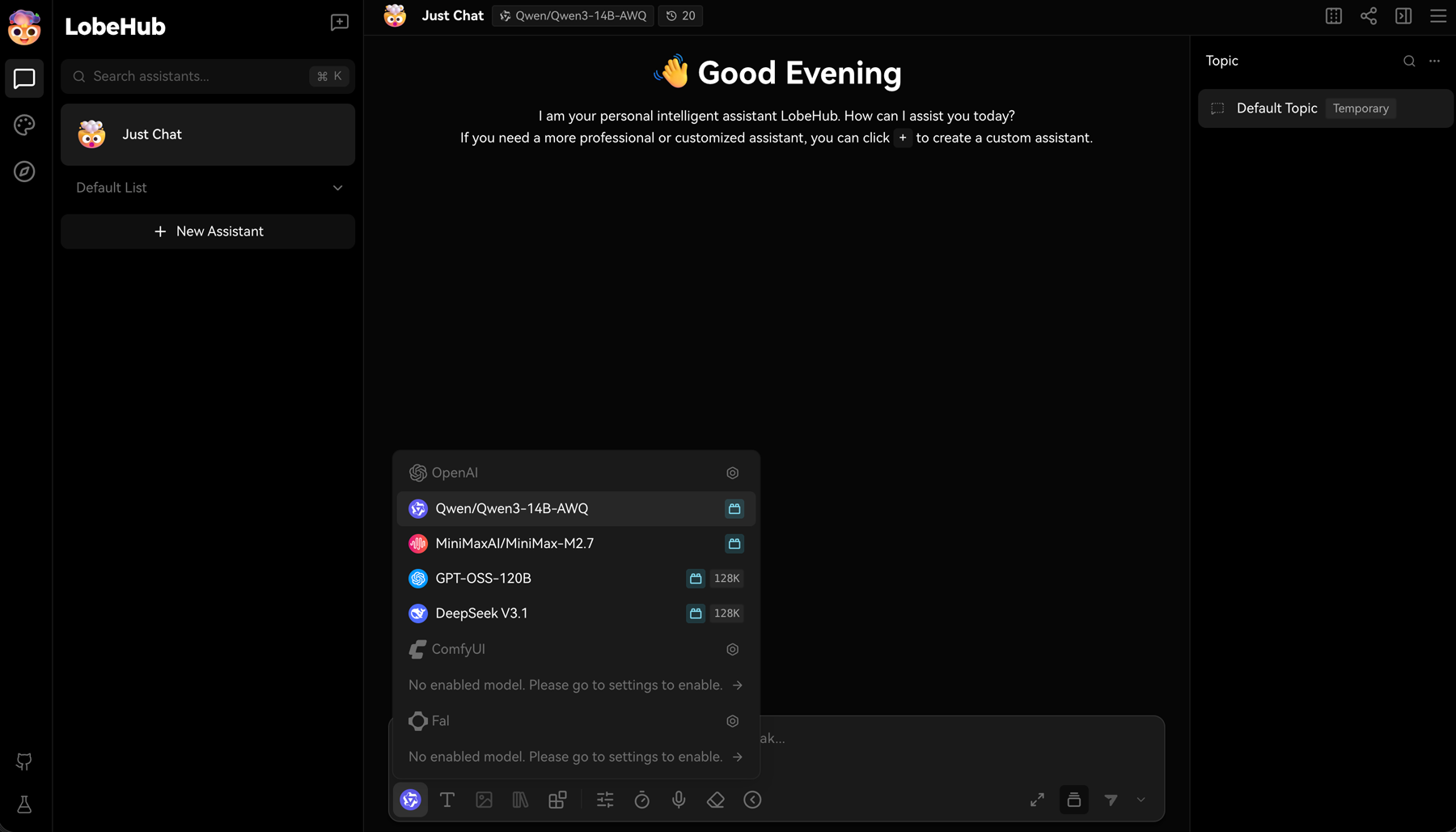
Send a prompt like:
Help me write a JWT login program in Python.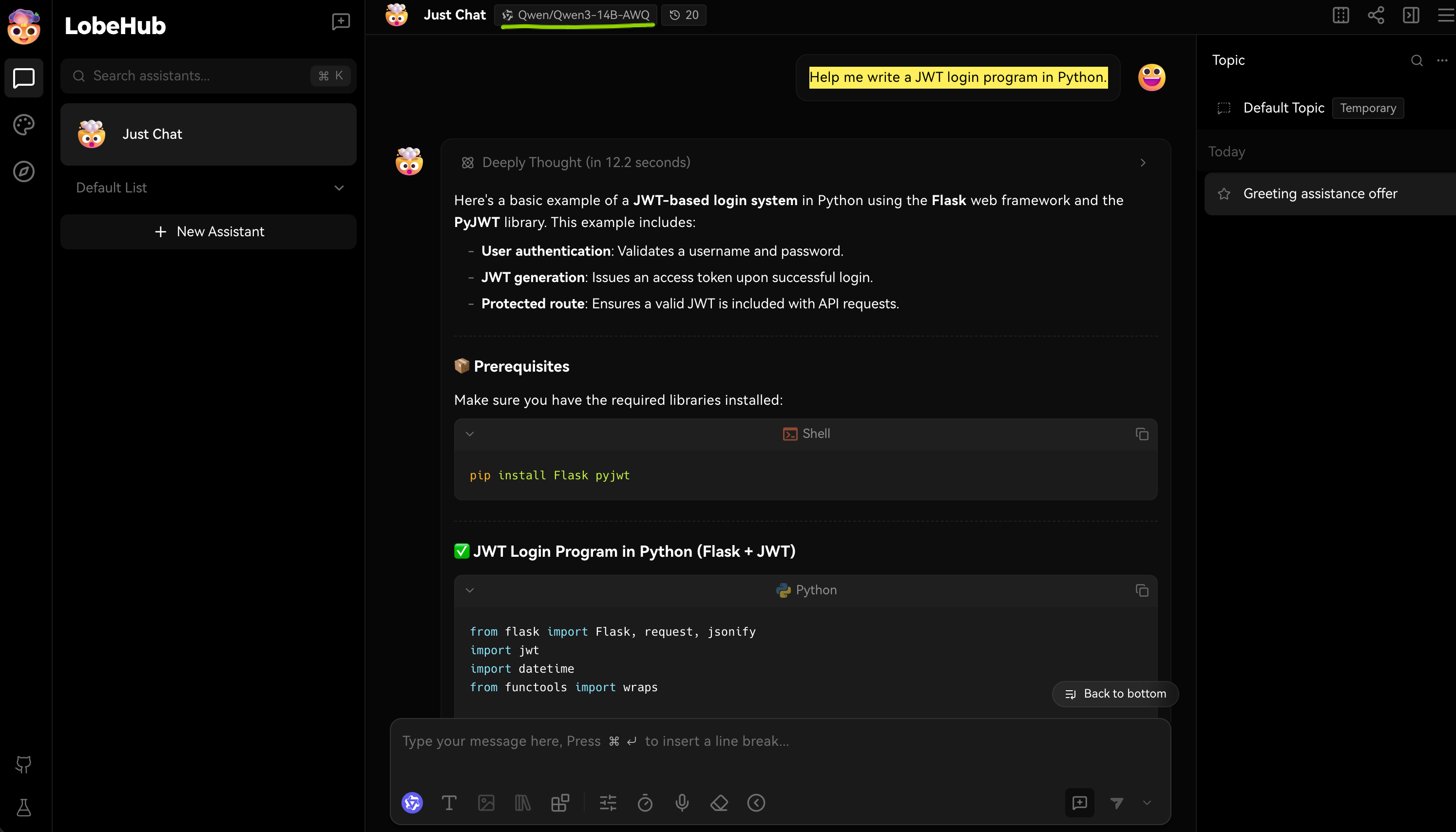
A response from your chosen model confirms LobeChat is calling Exascale Cloud successfully. You can switch models mid-conversation and fine-tune LobeChat’s settings to optimize performance.
Understanding the API behind the integration
LobeChat’s “Get Model List” and chat features map directly onto two OpenAI-compatible endpoints under the base URL https://gpu-api.exascalelabs.ai/api/v1. You don’t need to call these endpoints directly. Understanding them helps with troubleshooting and with building your own integrations.
Models endpoint
“Get Model List” issues GET {base}/models. The response is an array in which each model exposes the following fields:
| Field | Meaning |
|---|---|
model_name | The identifier you pass as “model” when sending a chat request. |
display_name | Human-readable name shown in the UI. |
provider | The model’s provider, including name, headquarters, and policy URLs. |
input_tokens_price / output_tokens_price | Price per million prompt and completion tokens (USD). |
context_length / max_completion_tokens | Maximum context window and completion length, in tokens. |
hf_repo / canonical_slug | Hugging Face repository identifier and normalized slug. |
knowledge_cutoff | Date the model’s training data was last updated (ISO 8601). |
Chat Completions endpoint
Each message is sent as POST {base}/chat/completions. The request body supports the parameters below; model and stream are required, the rest are optional.
| Parameter | Type | Description |
|---|---|---|
model | string | The model_name from the model list. |
stream | boolean | true streams chunks as they are generated; false returns one complete message. |
messages | array | Conversation history; each item has a role and content. |
temperature | float | Sampling temperature between 0 and 2. |
top_p | float | Nucleus sampling (0–1). |
top_k | string or array of strings | One or more sequences where the API will stop generating further tokens. |
max_tokens | integer | Maximum tokens to generate; prompt + max_tokens must fit the context length. |
presence_penalty | float | -2 to 2; encourages new topics. |
repetition_penalty | float | 0.01 to 2; reduces repetition (default 1.0). |
Responses include the generated choices, the model used, and a usage object reporting prompt, completion, and total token counts. These are the same numbers that drive billing.
Optional: verify the endpoint directly
To confirm your token and base URL independently of LobeChat, call the chat completions endpoint directly. This mirrors Exascale’s documented request format.
curl -X POST 'https://gpu-api.exascalelabs.ai/api/v1/chat/completions' \
  -H 'Authorization: Bearer YOUR_EXASCALE_API_TOKEN' \
  -H 'Content-Type: application/json' \
  -d '{
    "model": "MiniMaxAI/MiniMax-M2.1",
    "stream": false,
    "messages": [
      { "role": "developer", "content": "You are a helpful assistant." },
      { "role": "user", "content": "hello" }
    ]
  }'
USE A REAL MODEL NAME
Set model to a value returned by Get Model List (or GET /api/v1/models). MiniMaxAI/MiniMax-M2.1 is the example used in Exascale’s API reference.
Tips and troubleshooting
- Container health: run
docker logs -f lobechatand look for the “Ready” line shown in Step 2. - Access code prompt: enter the access code configured for your deployment (the example uses
exascale). - Connectivity Check: the Language Model panel includes a Check button that tests whether the API key and proxy address are filled in correctly. Use it before fetching models.
- No models in the dropdown: re-click Get Model List after confirming the API key and that the proxy address is exactly
https://gpu-api.exascalelabs.ai/api/v1. - Cost control: set a credit limit and reset interval on the token (Step 1) to cap model-invocation spend.
Conclusion
Integrating LobeChat with Exascale Cloud lets you build powerful conversational agents that draw on the strengths of multiple AI models. Whether you are creating a customer support chatbot, an internal knowledge assistant, or a complex AI agent, this integration provides the tools and flexibility you need, with a self-hosted interface in front and GPU-backed inference behind it.
Sources
Every instruction, command, URL, configuration value, and model identifier in this guide is drawn from the official Exascale Cloud API documentation. The embedded screenshots are the figures published on those pages.
- LobeChat Integration with Exascale Cloud: https://gpu-api.exascalelabs.ai/api-reference/token-factory/integrations/lobechat
- Chat (chat/completions): gpu-api.exascalelabs.ai/api-reference/token-factory/chat
- Models (model list): gpu-api.exascalelabs.ai/api-reference/token-factory/models